Most people spend the bulk of their time writing LinkedIn posts and almost no time formatting them. That's the mistake. You can have the sharpest insight in your industry, and it will still get buried if it looks like a wall of grey text on a 5-inch screen. This article will show you exactly how to use LinkedIn's post editor — its quirks, its limits, and the formatting decisions that separate posts that get 50 reactions from posts that get 5,000.
The specific failure point most creators miss: your formatting breaks on mobile. You drafted it on desktop, it looked clean, and then 80% of your audience opened it on their phone and saw your careful line breaks collapse into a dense paragraph that nobody is finishing. That's where the engagement dies — not in your ideas, but in how they land on screen.
LinkedIn's native post editor is deliberately minimal. There's no bold button, no bullet point toggle, no heading style. What you see is a plain text box with a 3,000-character limit — and a hidden cut that determines whether your post lives or dies.
Why the LinkedIn Post Editor Works Against You (If You Don't Know Its Rules)

That cut is the "see more" button. LinkedIn collapses posts at roughly 210 characters on mobile and 3 lines on desktop. Everything after that is hidden until someone taps to expand. Your opening lines are essentially your headline — they carry the entire weight of whether someone keeps reading. If your first visible lines don't earn the tap, nothing else you wrote matters.
Here's the concrete implication: your first two lines must work as a complete unit — specific enough to create curiosity, open enough to demand resolution. "I made a mistake that cost us 3 clients" earns the tap. "Lessons I've learned in my 10-year career" does not.
Does Formatting Actually Affect LinkedIn Reach?
Yes, measurably. Posts with images get roughly twice as many comments as text-only posts on LinkedIn, and videos are shared approximately 20 times more than other content types. Those are format-level decisions before you've written a single word.
But within text posts, structure changes behavior too. Short paragraphs — 1 to 2 sentences, max — are easier to skim on mobile. People decide whether to engage based on how readable a post looks before they actually read it. A post broken into single lines with white space between them signals: "this is quick, this is worth it." A dense block signals: "this is work."
One important note: these engagement figures are widely cited approximations from LinkedIn's platform data. They reflect directional trends, not controlled experiments. The principle holds, but your specific audience and niche will vary.
How to Actually Format Inside LinkedIn's Post Editor
LinkedIn's post editor has no formatting toolbar for standard posts. Here's what you're actually working with:
Line breaks are your primary tool. Hit Enter once for a new line, twice to add visible white space. One blank line between thoughts is standard. Two creates a stronger visual pause — use it before a shift in direction or before your call to action.
Special characters and symbols (→ • ✓ ◆) work because they're Unicode text, not markdown. Many creators paste these in from a separate tool or copy them from their notes app. They function as lightweight bullet points without requiring any formatting support from LinkedIn.
Bold and italic text don't exist natively in the post editor, but you'll see creators using what looks like bold. Those are Unicode mathematical alphanumeric characters — a separate character set that renders as styled text. Tools exist to convert your text into these characters before you paste into LinkedIn. Use them sparingly: a few words for emphasis, not whole sentences.
Emojis are readable on all devices and draw the eye down the post. They can guide the reader through a list or add visual rhythm — but more than 3–4 per post and they start to feel like a different kind of noise.
Hashtags go at the end, not inline. LinkedIn's own guidance is 3 hashtags per post — enough to extend reach, not so many that the post looks like an SEO experiment. Keep them on their own line at the bottom.
What "Good Structure" Actually Looks Like in a LinkedIn Post
Here's a concrete structure that consistently performs across text-based LinkedIn posts:
This is not a template you fill in. It's a rhythm. The logic is: hook → context → value → close. Every post should move through those four phases, even if the phases are two sentences each.
The Formatting Mistake Nobody Talks About: The Mobile Preview Gap
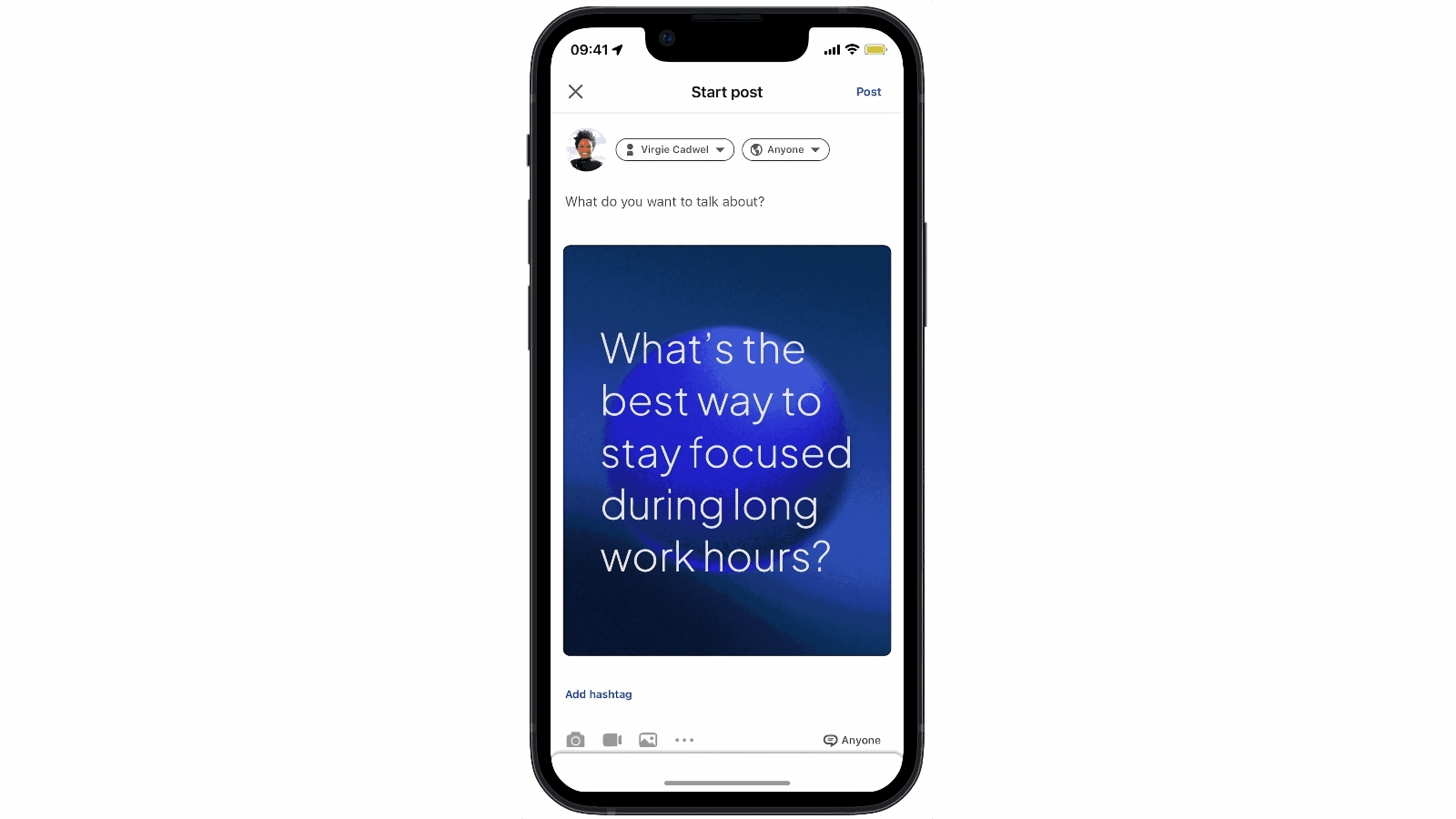
Here's where most creators leak engagement without knowing it.
You write your post on desktop. The line breaks look clean. You publish. What you don't see: on some mobile devices and in certain LinkedIn app versions, blank lines between paragraphs compress. Your three-line stanza becomes a paragraph. Your visual hierarchy collapses.
The fix is boring but essential: always use LinkedIn's own mobile app to preview before publishing. Draft on desktop, paste into the mobile app, and check how it renders before you tap "post." If a tool like LinkedIn's own post preview doesn't show it accurately, your phone will.
This is the formatting gap that no amount of clever structure survives. The post editor on desktop and the feed on mobile are not the same experience.
The Conventional Advice That's Incomplete: "Keep Posts Short"
Nearly every guide on LinkedIn posts tells you to keep it under 1,200 characters. The suggested sweet spot is generally 900–1,200 characters, and that's reasonable guidance for most cases. But it's incomplete.
The real rule is: keep it as short as the idea requires, and no shorter. Some of the highest-performing posts on LinkedIn are long-form personal narratives — 1,800 to 3,000 characters — that earn deep engagement because they're genuinely specific and well-formatted. The length isn't what kills them. The abandonment rate in the first five lines kills them.
A post that's 400 characters and vague loses to a post that's 2,000 characters and specific. Every time.
When Carousels Beat Any Text Format
There's a formatting ceiling for text posts that carousels don't have. When your idea has steps, frameworks, comparisons, or visual data, a LinkedIn carousel lets each slide do the work of a paragraph — with images, hierarchy, and typography that the post editor can never give you.
The friction has always been building them. Designing slide by slide in Canva, getting the fonts consistent, exporting as a PDF — it's a 2-hour process for a 10-slide carousel. If you're already spending that time on text posts that plateau at 800 impressions, ReSlide cuts the carousel production to about 10 minutes and handles the visual formatting so you're not making design decisions for half a day.
How to Write a Hook That Survives the "See More" Cut
These are the hook patterns that consistently earn the tap, with real examples:
What they share: specificity, a single idea, and something unresolved. You're opening a loop that the reader has to close. That's the entire mechanic of a hook that earns the "see more" tap.

Comments (0)